Skip to content

App Open Ads

This guide is intended for publishers integrating app open ads using Google Mobile Ads SDK.

App open ads are a special ad format intended for publishers wishing to monetize their app load screens. App open ads can be closed at any time, and are designed to be shown when your users bring your app to the foreground.

Note

Specific ad formats may vary by region.

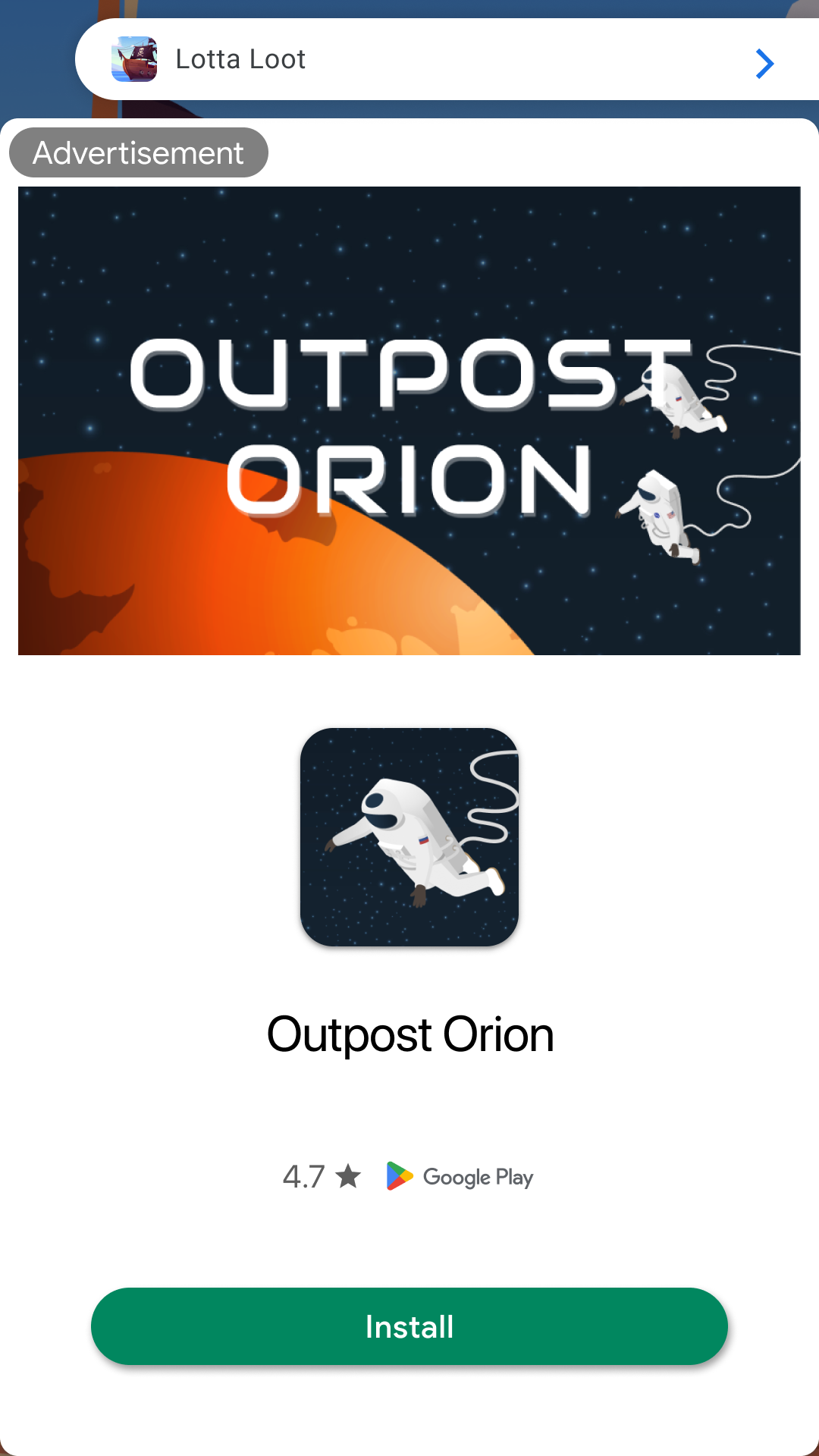
App open ads automatically show a small branding area so users know they're in your app. Here is an example of what an app open ad looks like:
Prerequisites

Before you continue, do the following:

Always test with test ads

The following table contains an ad unit ID which you can use to request test ads. It's been specially configured to return test ads rather than production ads for every request, making it safe to use.

However, after you've registered an app in the AdMob web interface and created your own ad unit IDs for use in your app, explicitly configure your device as a test device during development.

ca-app-pub-3940256099942544/9257395921
ca-app-pub-3940256099942544/5575463023

Implementation

The main steps to integrate app open ads are:

  1. Create a utility class
  2. Load the app open ad
  3. Listen to app open ad events
  4. Consider ad expiration
  5. Listen to app state events
  6. Show the app open ad
  7. Clean up the app open ad
  8. Preload the next app open ad

Create a utility class

Create a new class (e.g., AppOpenAdManager) to load the ad. This class controls an instance variable to keep track of a loaded ad and the ad unit ID for each platform.

Tip

While not strictly required, adding this script as an Autoload (Singleton) is highly recommended. This ensures the manager survives scene changes and remains persistent in the scene tree—providing a seamless global state monitor identical to the automated systems used by Google in other platforms.

extends Node

var _app_open_ad: AppOpenAd
var _expire_time: int = 0
var _is_showing_ad: bool = false

# These ad units are configured to always serve test ads.
var _ad_unit_id: String:
    get:
        if OS.get_name() == "Android":
            return "ca-app-pub-3940256099942544/9257395921"
        return "ca-app-pub-3940256099942544/5575463023"

func is_ad_available() -> bool:
    return _app_open_ad != null

func load_app_open_ad() -> void:
    pass # implementation below

func show_app_open_ad() -> void:
    pass # implementation below
using Godot;
using PoingStudios.AdMob.Api;
using PoingStudios.AdMob.Api.Core;
using PoingStudios.AdMob.Api.Listeners;
using System;

public partial class AppOpenAdManager : Node
{
    private AppOpenAd _appOpenAd;
    private long _expireTime;
    private bool _isShowingAd;

    // These ad units are configured to always serve test ads.
    private string _adUnitId => OS.GetName() == "Android" 
        ? "ca-app-pub-3940256099942544/9257395921" 
        : "ca-app-pub-3940256099942544/5575463023";

    public bool IsAdAvailable => _appOpenAd != null;

    public void LoadAppOpenAd()
    {
        // implementation below
    }

    public void ShowAppOpenAd()
    {
        // implementation below
    }
}

Load the app open ad

Loading an app open ad is accomplished using the load() method on the AppOpenAdLoader class. The load method requires an ad unit ID, an AdRequest object, and a completion handler which gets called when ad loading succeeds or fails. The loaded AppOpenAd object is provided as a parameter in the completion handler.

func load_app_open_ad() -> void:
    # Clean up the old ad before loading a new one.
    if _app_open_ad:
        _app_open_ad.destroy()
        _app_open_ad = null

    print("Loading the app open ad.")

    # Create our request used to load the ad.
    var ad_request := AdRequest.new()

    # Send the request to load the ad.
    var load_callback := AppOpenAdLoadCallback.new()
    load_callback.on_ad_loaded = func(ad: AppOpenAd):
        print("App open ad loaded with response : " + ad.get_response_info().response_id)
        _app_open_ad = ad
        _register_event_handlers(ad)

    load_callback.on_ad_failed_to_load = func(error: LoadAdError):
        print("App open ad failed to load an ad with error : " + error.message)

    AppOpenAdLoader.new().load(_ad_unit_id, ad_request, load_callback)
public void LoadAppOpenAd()
{
    // Clean up the old ad before loading a new one.
    if (_appOpenAd != null)
    {
        _appOpenAd.Destroy();
        _appOpenAd = null;
    }

    GD.Print("Loading the app open ad.");

    // Create our request used to load the ad.
    var adRequest = new AdRequest();

    // Send the request to load the ad.
    var loadCallback = new AppOpenAdLoadCallback();
    loadCallback.OnAdLoaded = (ad) =>
    {
        GD.Print("App open ad loaded with response : " + ad.GetResponseInfo().ResponseId);
        _appOpenAd = ad;
        RegisterEventHandlers(ad);
    };
    loadCallback.OnAdFailedToLoad = (error) =>
    {
        GD.Print("App open ad failed to load an ad with error : " + error.Message);
    };

    new AppOpenAdLoader().Load(_adUnitId, adRequest, loadCallback);
}

Warning

Attempting to load a new ad from the ad request completion block when an ad failed to load is strongly discouraged. If you must load an ad from the ad request completion block, limit ad load retries to avoid continuous failed ad requests in situations such as limited network connectivity.

Listen to app open ad events

To further customize the behavior of your ad, you can hook into a number of events in the ad's lifecycle: opening, closing, and so on. Listen for these events by registering a delegate as shown below.

func _register_event_handlers(ad: AppOpenAd) -> void:
    # Raised when the ad is estimated to have earned money.
    ad.on_ad_paid = func(ad_value: AdValue):
        print("App open ad paid %d %s." % [ad_value.value_micros, ad_value.currency_code])

    var content_callback := FullScreenContentCallback.new()
    # Raised when an impression is recorded for an ad.
    content_callback.on_ad_impression = func():
        print("App open ad recorded an impression.")
    # Raised when a click is recorded for an ad.
    content_callback.on_ad_clicked = func():
        print("App open ad was clicked.")
    # Raised when an ad opened full screen content.
    content_callback.on_ad_showed_full_screen_content = func():
        print("App open ad full screen content opened.")
    # Raised when the ad closed full screen content.
    content_callback.on_ad_dismissed_full_screen_content = func():
        print("App open ad full screen content closed.")
    # Raised when the ad failed to open full screen content.
    content_callback.on_ad_failed_to_show_full_screen_content = func(error: AdError):
        print("App open ad failed to open full screen content with error : " + error.message)

    ad.full_screen_content_callback = content_callback
private void RegisterEventHandlers(AppOpenAd ad)
{
    // Raised when the ad is estimated to have earned money.
    ad.OnAdPaid = (adValue) =>
    {
        GD.Print($"App open ad paid {adValue.ValueMicros} {adValue.CurrencyCode}.");
    };

    var contentCallback = new FullScreenContentCallback();
    // Raised when an impression is recorded for an ad.
    contentCallback.OnAdImpression = () => GD.Print("App open ad recorded an impression.");
    // Raised when a click is recorded for an ad.
    contentCallback.OnAdClicked = () => GD.Print("App open ad was clicked.");
    // Raised when an ad opened full screen content.
    contentCallback.OnAdShowedFullScreenContent = () => GD.Print("App open ad full screen content opened.");
    // Raised when the ad closed full screen content.
    contentCallback.OnAdDismissedFullScreenContent = () => GD.Print("App open ad full screen content closed.");
    // Raised when the ad failed to open full screen content.
    contentCallback.OnAdFailedToShowFullScreenContent = (error) => 
        GD.Print("App open ad failed to open full screen content with error : " + error.Message);

    ad.FullScreenContentCallback = contentCallback;
}

Consider ad expiration

Key Point

App open ads will time out after four hours. Ads rendered more than four hours after request time will no longer be valid and may not earn revenue.

To ensure you don't show an expired ad, add a method to the AppOpenAdManager that checks how long it has been since your ad loaded. Then, use that method to check if the ad is still valid.

The app open ad has a 4 hour timeout. Cache the load time in the _expire_time variable.

func load_app_open_ad() -> void:
    # ...
    # Send the request to load the ad.
    var load_callback := AppOpenAdLoadCallback.new()

    load_callback.on_ad_failed_to_load = func(error: LoadAdError):
        # If the operation failed, an error is returned.
        print("App open ad failed to load an ad with error : " + error.message)

    load_callback.on_ad_loaded = func(ad: AppOpenAd):
        # If the operation completed successfully, no error is returned.
        print("App open ad loaded with response : " + ad.get_response_info().response_id)

        # App open ads can be preloaded for up to 4 hours.
        _expire_time = Time.get_unix_time_from_system() + (4 * 60 * 60)

        _app_open_ad = ad
        _register_event_handlers(ad)
1
2
3
func is_ad_available() -> bool:
    return _app_open_ad != null \
           and Time.get_unix_time_from_system() < _expire_time
public void LoadAppOpenAd()
{
    // Clean up the old ad before loading a new one.
    if (_appOpenAd != null)
    {
        _appOpenAd.Destroy();
        _appOpenAd = null;
    }

    GD.Print("Loading the app open ad.");

    // Create our request used to load the ad.
    var adRequest = new AdRequest();

    // Send the request to load the ad.
    var loadCallback = new AppOpenAdLoadCallback();

    loadCallback.OnAdFailedToLoad = (error) =>
    {
        // If the operation failed, an error is returned.
        GD.Print("App open ad failed to load an ad with error : " + error.Message);
    };

    loadCallback.OnAdLoaded = (ad) =>
    {
        // If the operation completed successfully, no error is returned.
        GD.Print("App open ad loaded with response : " + ad.GetResponseInfo().ResponseId);

        // App open ads can be preloaded for up to 4 hours.
        _expireTime = DateTimeOffset.UtcNow.ToUnixTimeSeconds() + (4 * 60 * 60);

        _appOpenAd = ad;
        RegisterEventHandlers(ad);
    };

    new AppOpenAdLoader().Load(_adUnitId, adRequest, loadCallback);
}
1
2
3
4
5
6
7
8
public bool IsAdAvailable
{
    get
    {
        return _appOpenAd != null 
               && DateTimeOffset.UtcNow.ToUnixTimeSeconds() < _expireTime;
    }
}

Listen to app state events

Use Godot's focus notifications to listen to application foreground and background events.

1
2
3
4
5
func _notification(what: int) -> void:
    if what == NOTIFICATION_APPLICATION_FOCUS_IN:
        # If the app is Foregrounded and the ad is available, show it.
        if is_ad_available():
            show_app_open_ad()
public override void _Notification(int what)
{
    if (what == NotificationApplicationFocusIn)
    {
        // If the app is Foregrounded and the ad is available, show it.
        if (IsAdAvailable)
        {
            ShowAppOpenAd();
        }
    }
}

Show the app open ad

To show a loaded app open ad, call the show() method on the AppOpenAd instance.

Note

App open ads should be displayed during natural pauses in the flow of an app. Between levels of a game is a good example, or after the user completes a task.

1
2
3
4
5
6
func show_app_open_ad() -> void:
    if _app_open_ad:
        print("Showing app open ad.")
        _app_open_ad.show()
    else:
        print("App open ad is not ready yet.")
public void ShowAppOpenAd()
{
    if (_appOpenAd != null)
    {
        GD.Print("Showing app open ad.");
        _appOpenAd.Show();
    }
    else
    {
        GD.Print("App open ad is not ready yet.");
    }
}

Clean up the app open ad

When you are finished with a AppOpenAd, make sure to call the destroy() method before dropping your reference to it:

_app_open_ad.destroy()
_appOpenAd.Destroy();

This notifies the plugin that the object is no longer used and the memory it occupies can be reclaimed. Failure to call this method results in memory leaks.

Preload the next app open ad

AppOpenAd is a one-time-use object. This means once an app open ad is shown, the object can't be used again. To request another app open ad, you'll need to create a new AppOpenAd object.

To prepare an app open ad for the next impression opportunity, preload the app open ad once the on_ad_dismissed_full_screen_content or on_ad_failed_to_show_full_screen_content event is raised.

# Inside _register_event_handlers...
content_callback.on_ad_dismissed_full_screen_content = func():
    print("App open ad full screen content closed.")
    # Reload the ad so that we can show another as soon as possible.
    load_app_open_ad()

content_callback.on_ad_failed_to_show_full_screen_content = func(error: AdError):
    print("App open ad failed to open full screen content.")
    # Reload the ad so that we can show another as soon as possible.
    load_app_open_ad()
// Inside RegisterEventHandlers...
contentCallback.OnAdDismissedFullScreenContent = () => 
{
    GD.Print("App open ad full screen content closed.");
    // Reload the ad so that we can show another as soon as possible.
    LoadAppOpenAd();
};

contentCallback.OnAdFailedToShowFullScreenContent = (error) => 
{
    GD.Print("App open ad failed to open full screen content.");
    // Reload the ad so that we can show another as soon as possible.
    LoadAppOpenAd();
};

Cold starts and loading screens

The documentation thus far assumes that you only show app open ads when users foreground your app when it is suspended in memory. "Cold starts" occur when your app is launched but was not previously suspended in memory.

An example of a cold start is when a user opens your app for the first time. With cold starts, you won't have a previously loaded app open ad that is ready to be shown immediately. The delay between when you request an ad and receive an ad back can create a situation where users are able to briefly use your app before being surprised by an ad. This should be avoided because it is a bad user experience.

The preferred way to use app open ads on cold starts is to use a loading screen to load your game or app assets, and only show the ad from the loading screen. If your app has completed loading and has sent the user to the main content of your app, do not show the ad.

Key Point

In order to continue loading app assets while the app open ad is being displayed, always load assets in a background thread.

Best practices

App open ads help you monetize your app loading screen when the app first launches and during app switches, but it's important to keep the following best practices in mind so that your users enjoy using your app.

  • Show your first app open ad after your users have used your app a few times.
  • Show app open ads during times when your users would otherwise be waiting for your app to load.
  • If you have a loading screen under the app open ad and your loading screen completes loading before the ad is dismissed, dismiss your loading screen in the on_ad_dismissed_full_screen_content event handler.
  • Ensure your AppOpenAdManager (the node that implements the app state listener) is present in the scene tree. Life cycle notifications such as NOTIFICATION_APPLICATION_FOCUS_IN are required for events to fire, so don't remove this node; events stop firing if the node is removed from the tree.

Additional resources